
.png)



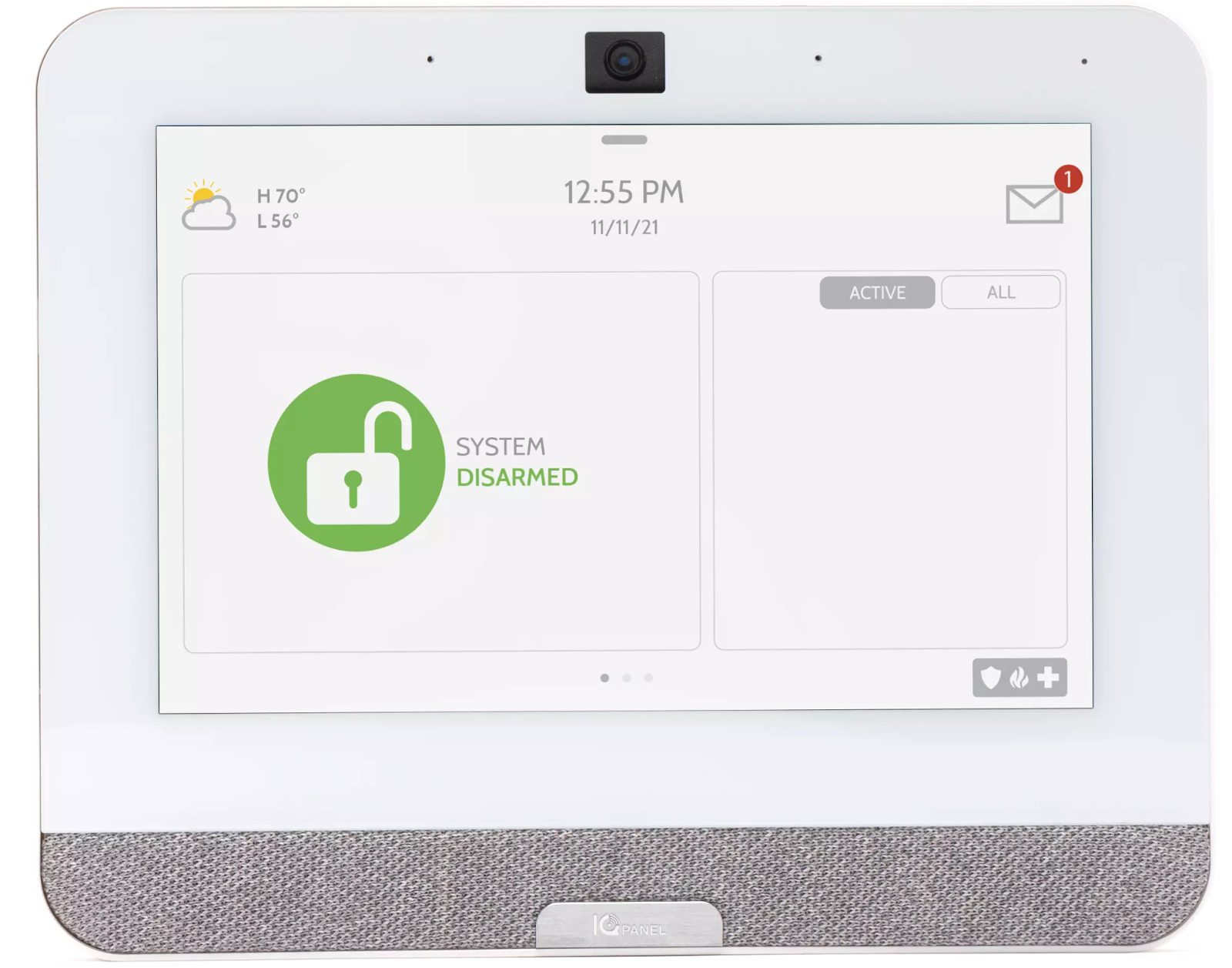
- Swipe down the top grey bar to access the user settings.
- Press the Settings button. (Bottom Left Wrench Icon)
- Press the Advanced Settings button. (Gear Icon: Bottom second from the right)
- Enter your current user code.
- Once in the Advanced Settings, press the User Management Button (Icon is the Silhouette of a few people)
- Now you can do two things.
- Press the pencil icon to the right of Admin to change YOUR password. You can change the name of the code user and/or change your code. *Make sure to confirm your new password and hit save.
- You can also add new users by pressing the “Add User” Button and creating a new name and password.
- After hitting save the system will bring you back to the home screen and display that the Logged in user is updated.
- Now you have updated your user codes!
.png)


